01 · Scene structure
Hierarchy
Build a scene from visible entities: cameras, lights, volumes, terrain, and imported assets stay organized in one place.
Inside the editor
Hover to explore the editor.
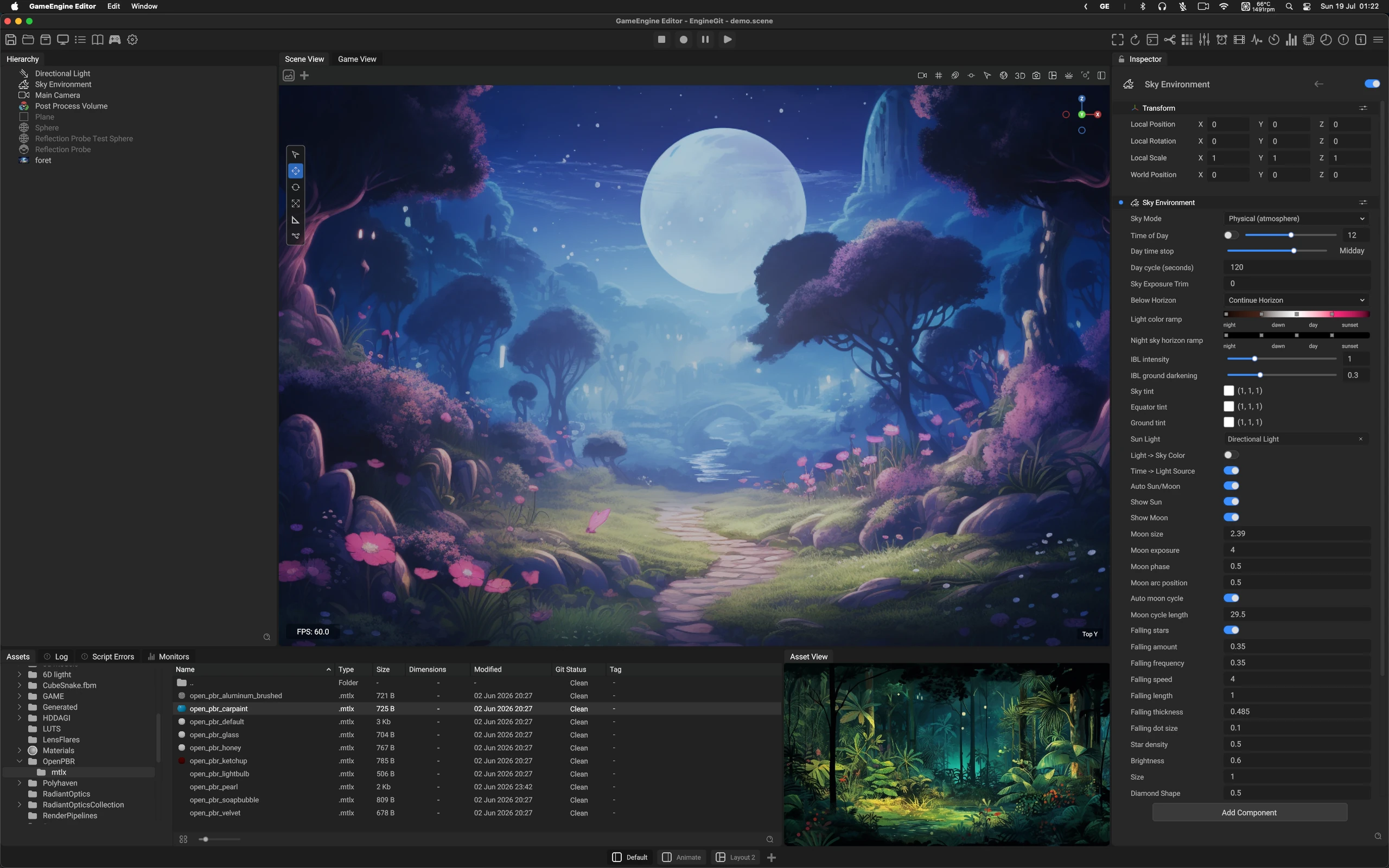
01 · Scene structure
Build a scene from visible entities: cameras, lights, volumes, terrain, and imported assets stay organized in one place.
02 · World preview
Author directly in the world with an interactive scene view for composition, lighting, atmosphere, and moment-to-moment iteration.
03 · Precision controls
Tune the selected object through focused component controls—from transform values to physical sky, sun, moon, fog, and particles.
04 · Project content
Browse project files and visual assets without leaving the editor, then bring them straight into the scene and iterate in context.
05 · Visual preview
Inspect selected materials, textures, and other visual assets in a dedicated preview before bringing them into the world.
06 · Run and iterate
Enter play mode, pause the world, or step through simulation changes while keeping the scene and editor state in view.
07 · Editor tools
Reach the editor’s primary workspace tools, view controls, and quick actions from the persistent toolbar across the top.
08 · Workspace layouts
Switch between saved workspace arrangements so the editor adapts to animation, authoring, asset review, and other focused tasks.
09 · View tools
Use the vertical scene overlay to switch authoring tools and interact directly with the world view while you build.
10 · Spatial controls
Set local position, rotation, and scale with precise numeric controls for the selected entity.
11 · Identity
Find an asset by its project name and use it as the primary reference point while browsing content.
12 · Format
See the asset format at a glance, so materials, textures, models, and other resources stay easy to distinguish.
13 · Footprint
Review file size directly in the browser to understand an asset’s storage footprint in the project.
14 · Resolution
Check dimensions and other visual properties before choosing an asset for the current scene.
15 · Recency
See when an asset was last changed, helping you identify the most current version during iteration.
16 · Source control
Keep source-control state visible in the browser so changed, new, and tracked assets are clear while you work.
17 · Organization
Use tags to classify content and keep larger projects easier to search, filter, and manage.
More of the editor
Hover each capture to inspect the details at 100%.
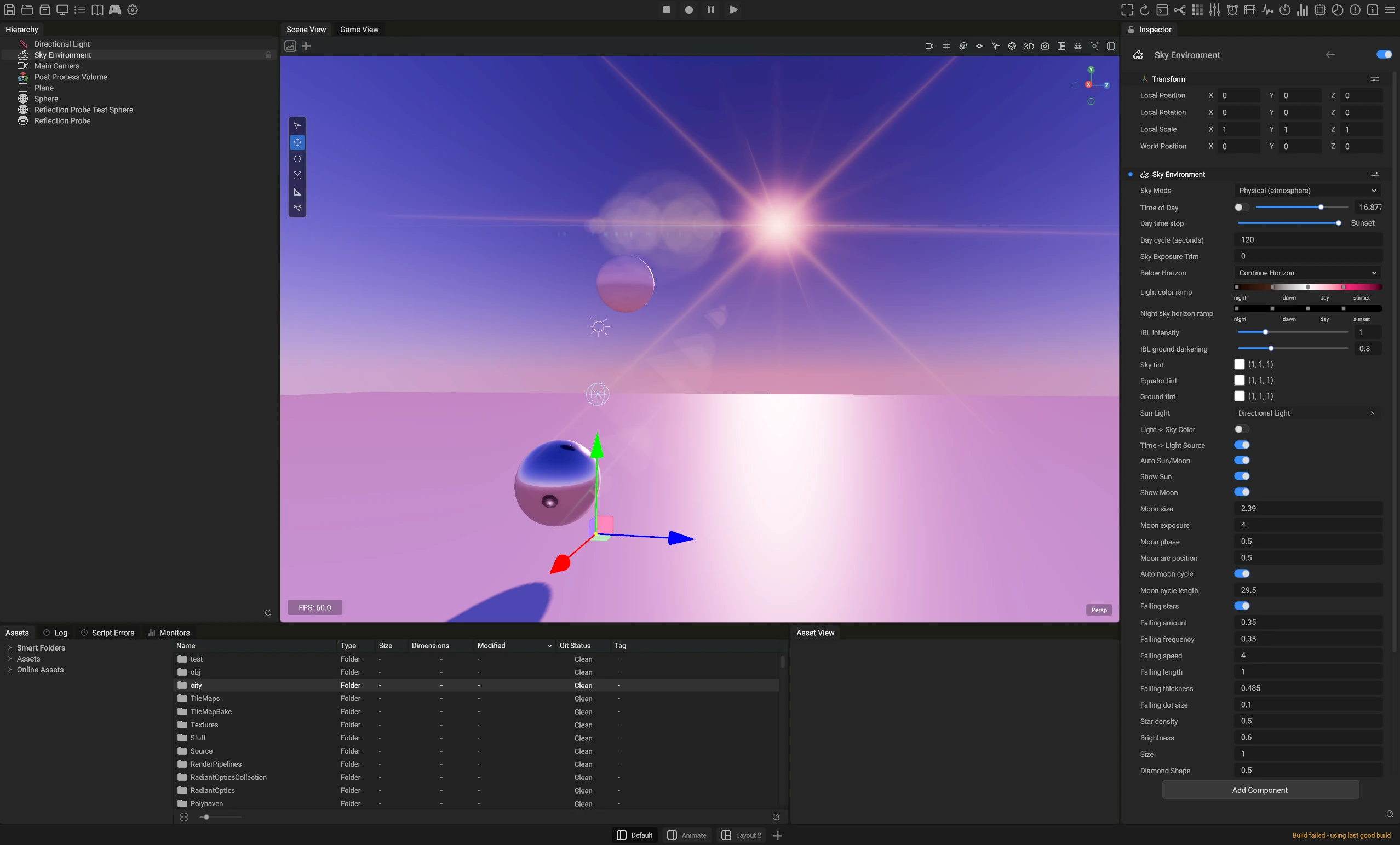
01 · Live workspace
A full editor workspace with the scene view, project assets, and the physical sky inspector working together.
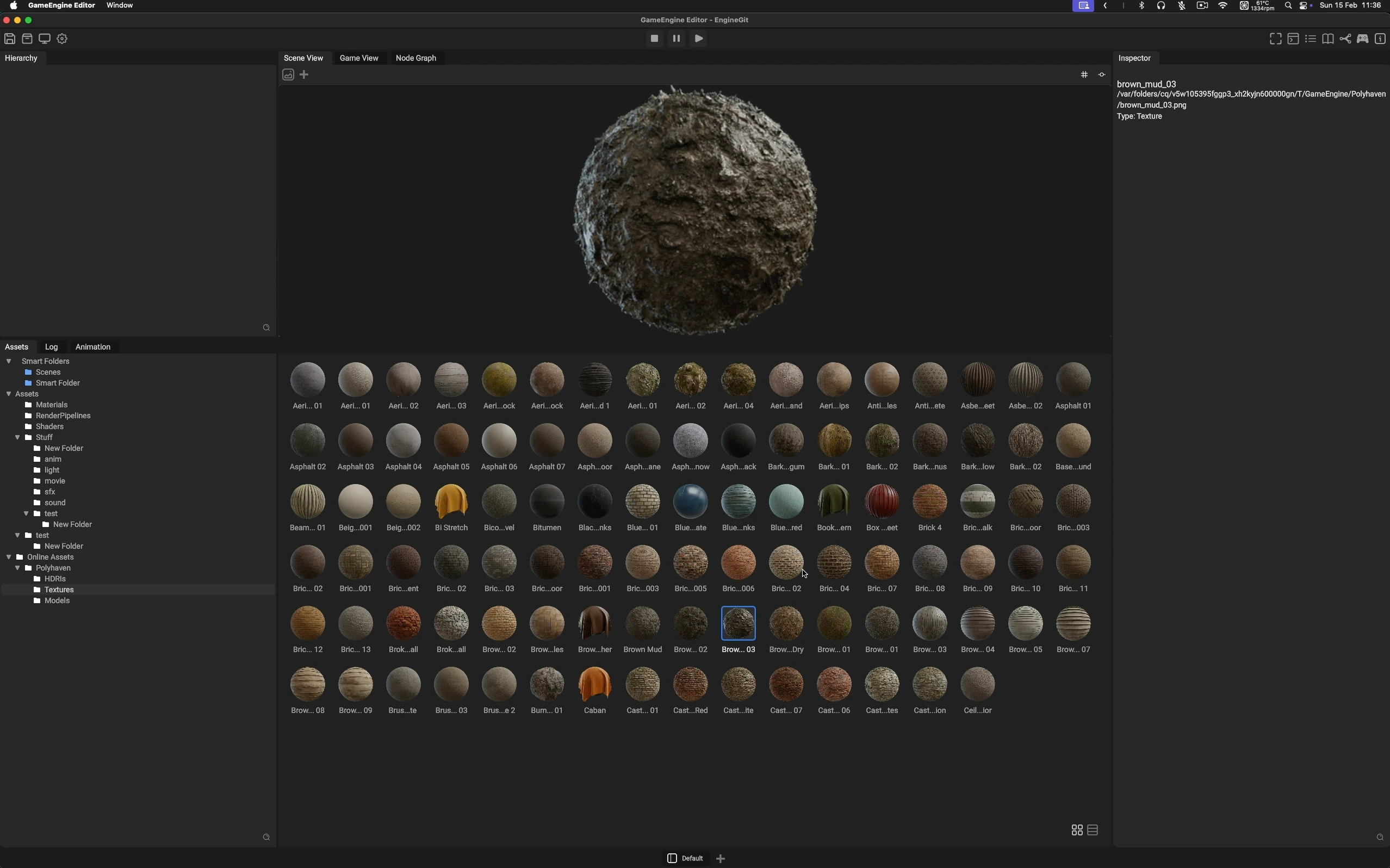
02 · Material library
Explore a visual material library in the asset browser, select an asset, and inspect it directly in the workspace.
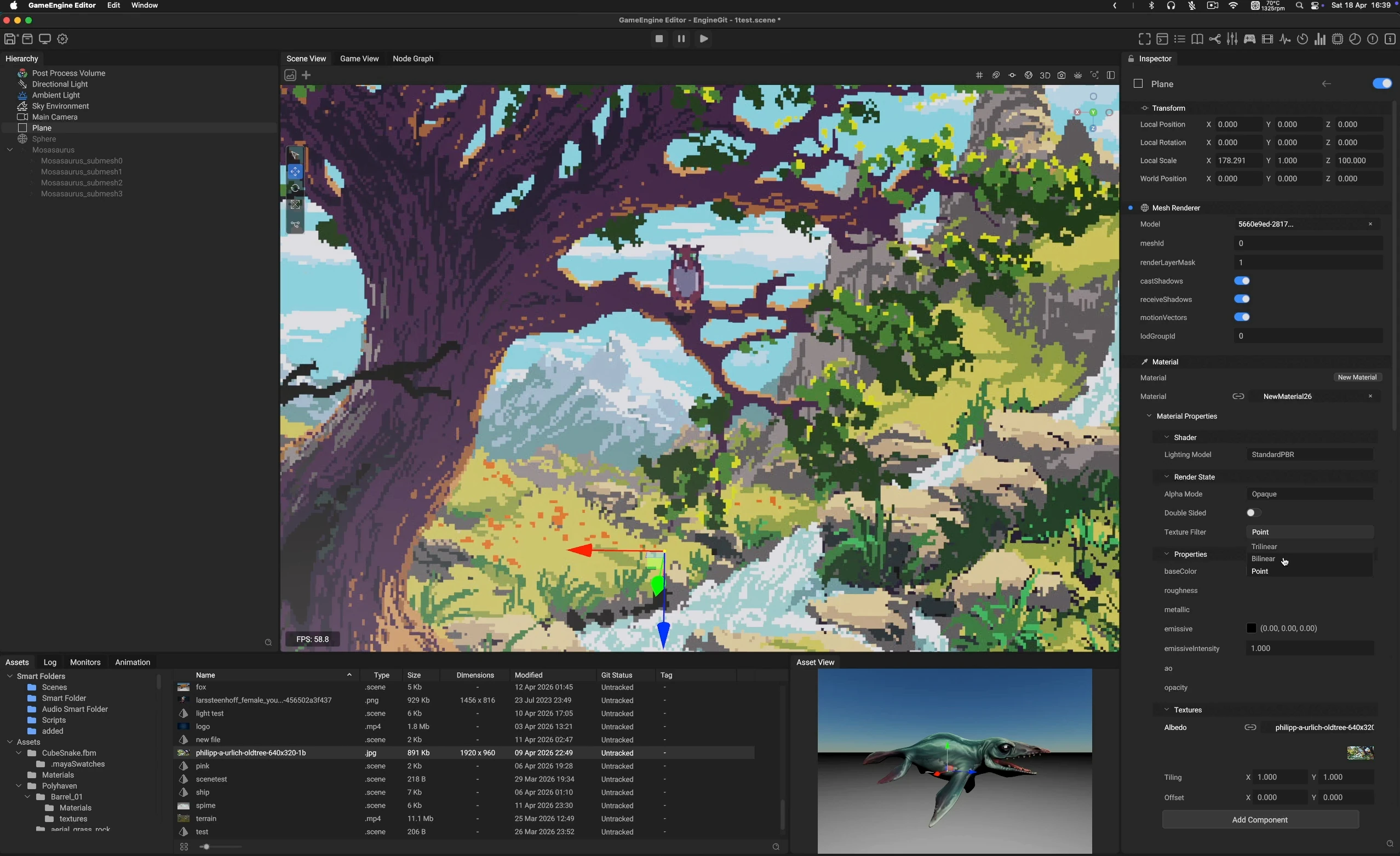
03 · Scene authoring
Build stylised pixel-art scenes while keeping the hierarchy, scene, asset browser, and material controls visible for fast iteration.
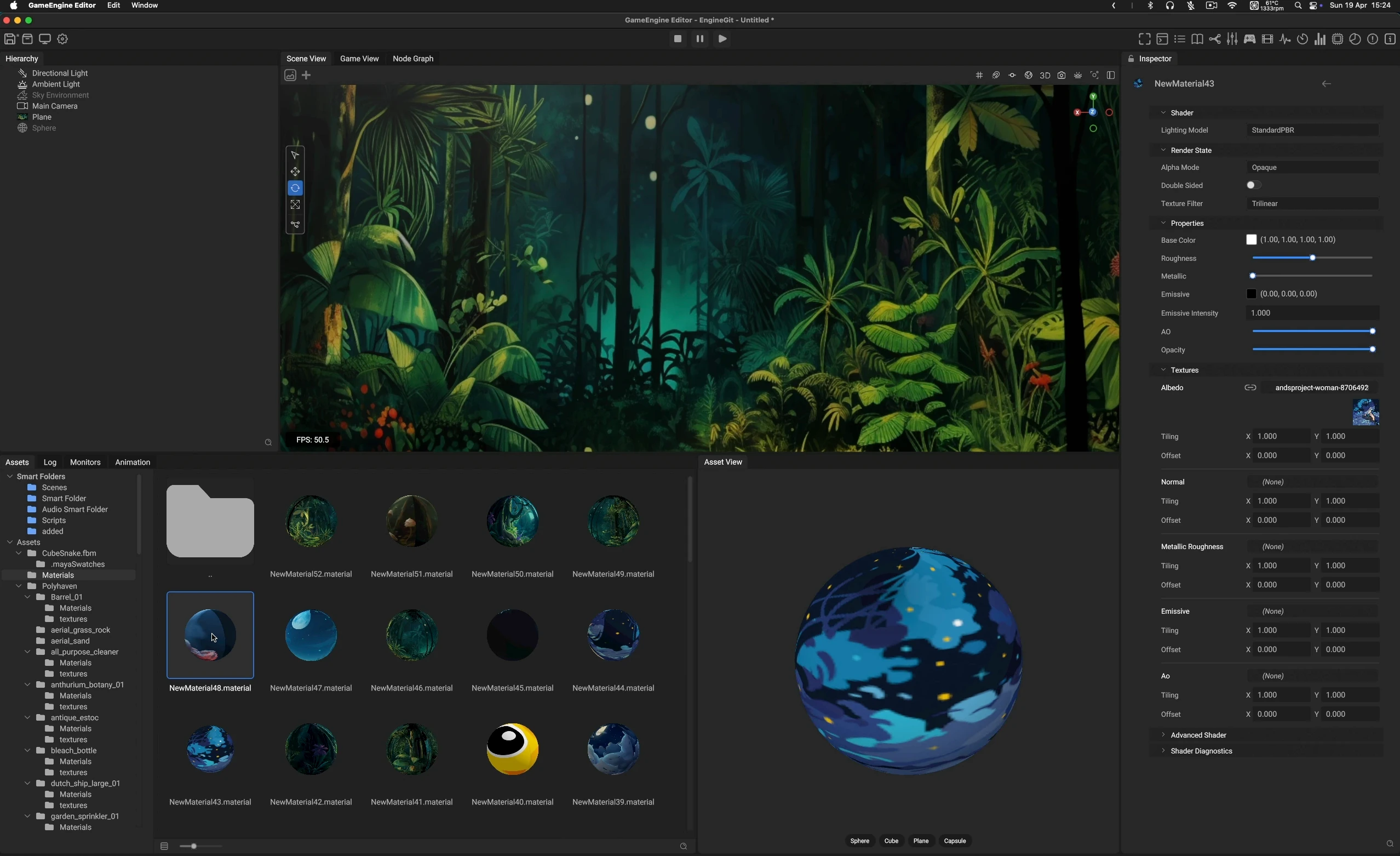
04 · Asset inspection
Preview materials side by side with their shader properties, textures, and selected scene content.
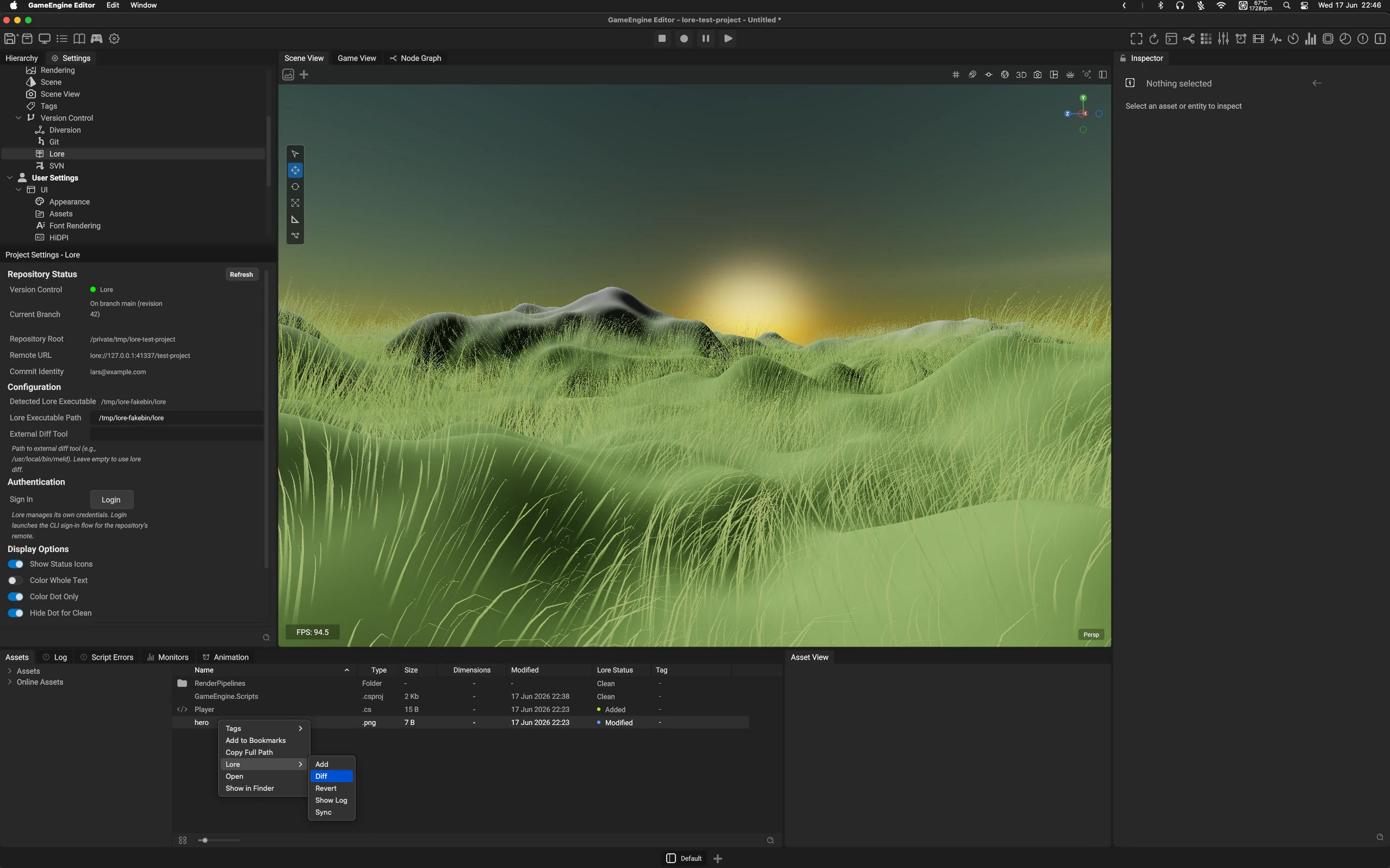
05 · Version control
Work with Git, Lore, Subversion, and Diversion directly in the editor—keeping repository state, asset changes, diffs, history, and sync actions close to the project.
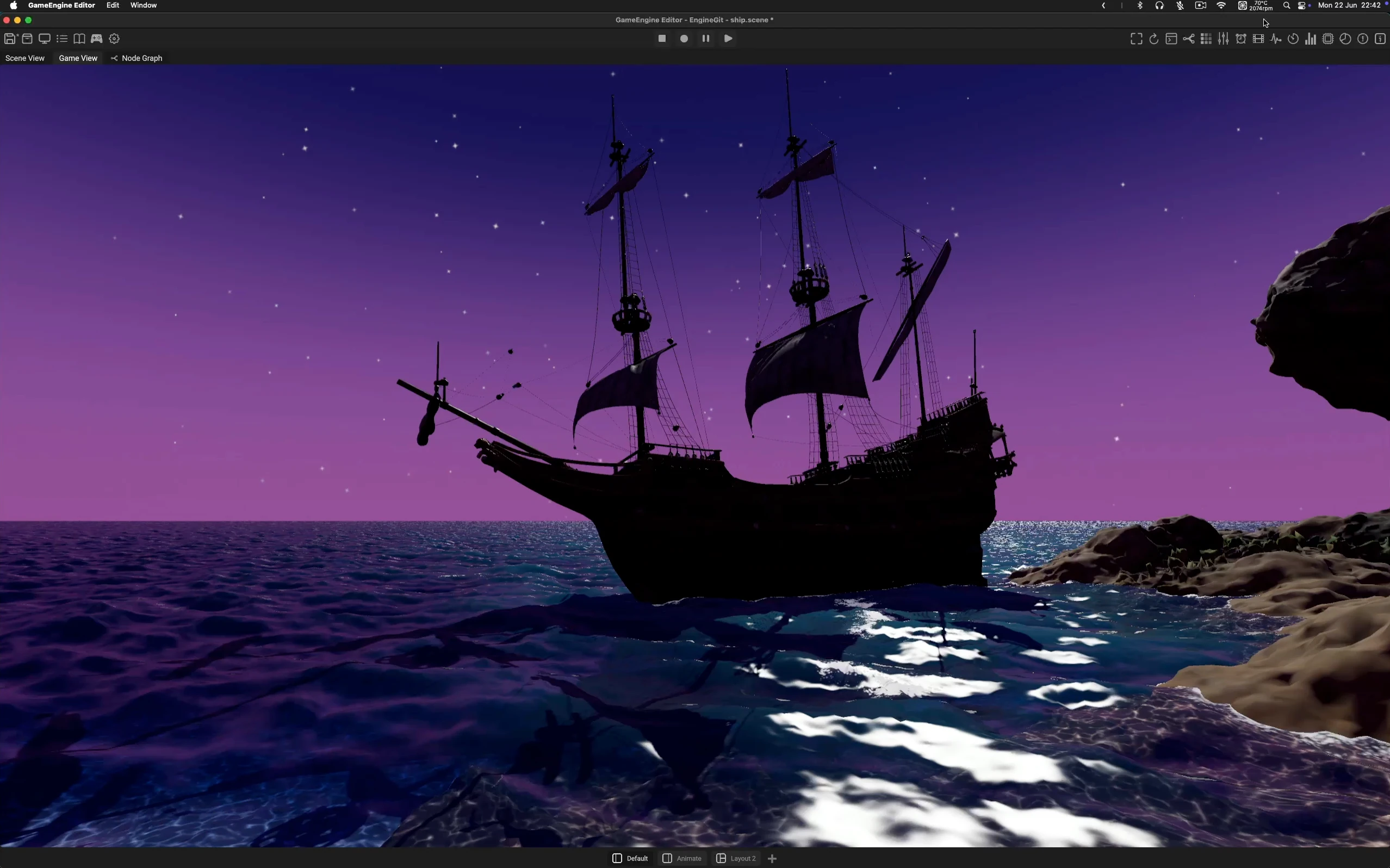
06 · Environment rendering
Shape an ocean scene with reflective water, a starry sky, and image-based lighting that carries atmosphere across the world.
Click anywhere to close · Esc